How to Use Citely: A Step-by-Step Getting Started Guide (2026)
A complete walkthrough of Citely's two core features — Source Finder for tracing citations and Citation Checker for verifying references — with practical examples for researchers and students.
Citely does two things: it finds the original source behind any claim, and it verifies whether your references are real. This guide walks through both features with practical examples.
Getting Started
Create your account
Go to citely.ai and click "Sign In" in the top right. You can log in with Google, GitHub, or enter your email for a magic link. No password needed — click the link in your email and you're in.
The workspace
After logging in, you'll see the workspace. This is where all the action happens. You have two main tools:
- Source Finder — paste a claim or paragraph, get back the original academic sources
- Citation Checker — paste a reference list, verify every citation against academic databases
Feature 1: Source Finder (Reverse Citation Search)
What it solves
You have a claim in your notes — "Microplastics have been detected in human placental tissue at concentrations exceeding 50 particles per gram" — but you don't have the original source. Or you're reading a paper that makes an interesting claim and you want to find the primary research behind it.
The Source Finder takes your text and searches across CrossRef, PubMed, OpenAlex, arXiv, and Google Scholar to find published papers that match.
How to use it
- Go to the workspace and select Source Finder
- Paste your text — this can be a single sentence, a paragraph, or a longer passage
- Click the search button
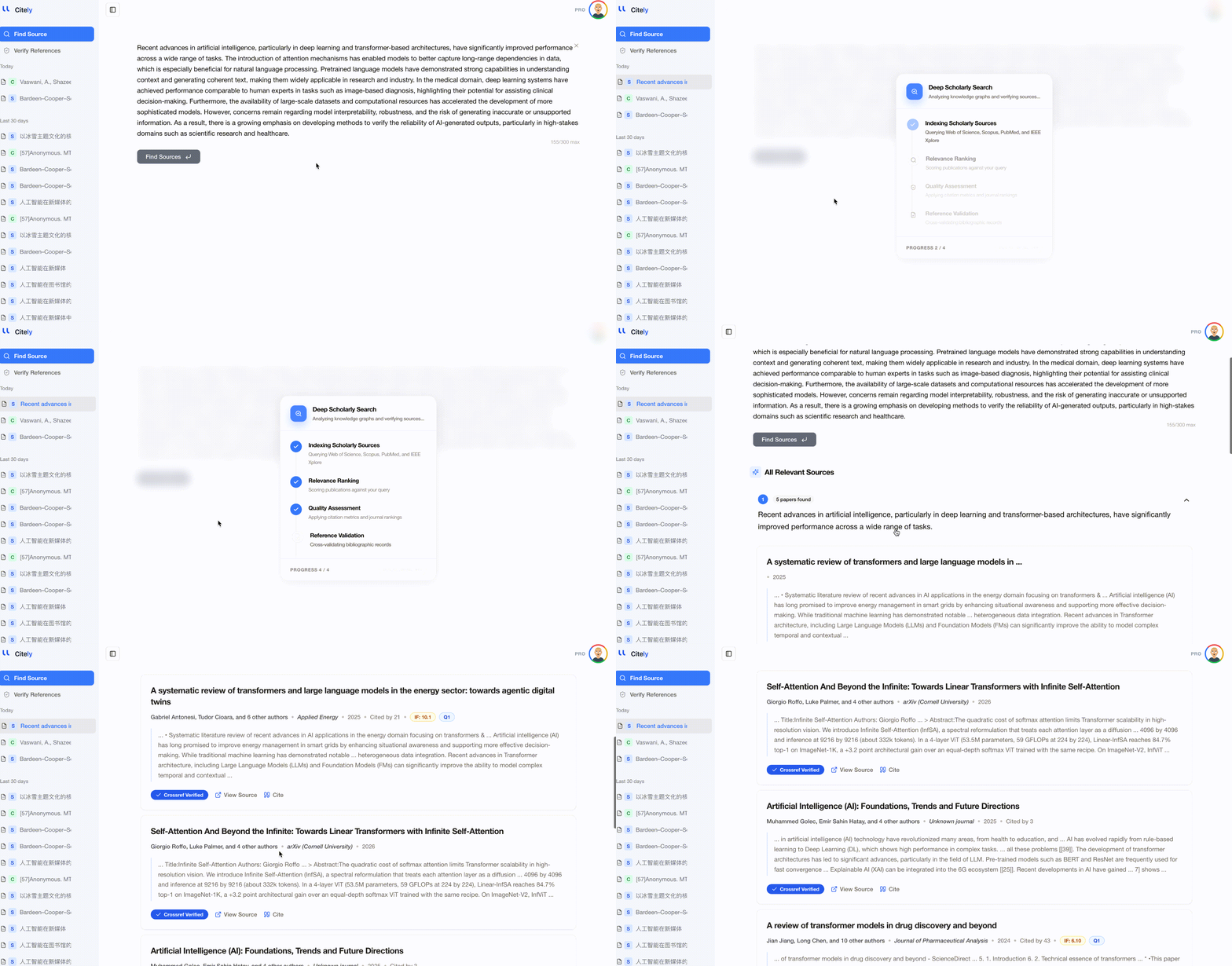
Within seconds, you'll get a list of matching academic papers, each with:
- Full citation details (authors, title, journal, year)
- DOI (clickable link to the paper)
- A relevance indicator showing how closely the paper matches your input
- A copy button for the formatted citation
Tips for better results
Be specific. "Microplastics in human placenta" returns broader results than the full claim with specific numbers. Include details like concentrations, sample sizes, or specific findings for the most precise matches.
Try both languages. If you're working in a non-English language, try searching in both your language and English. Many papers are published in English even when the research context is regional.
Use it iteratively. If the first result isn't quite right, refine your input. Add or remove context. Include the approximate year if you remember it.
When to use Source Finder
- Tracing a quote back to its original publication
- Finding the primary source behind a claim in a secondary source
- Recovering a lost reference from your notes
- Building a reference list from scratch based on claims in your draft
Feature 2: Citation Checker (Reference Verification)
What it solves
You have a reference list — maybe 20 entries for a journal article, maybe 150 for a dissertation — and you need to verify that every citation is real, accurate, and correctly formatted. Manual checking against CrossRef and PubMed would take hours. The Citation Checker does it in under a minute.
How to use it
- Go to the workspace and select Citation Checker
- Paste your reference list as plain text — copy directly from your manuscript
- Click the check button
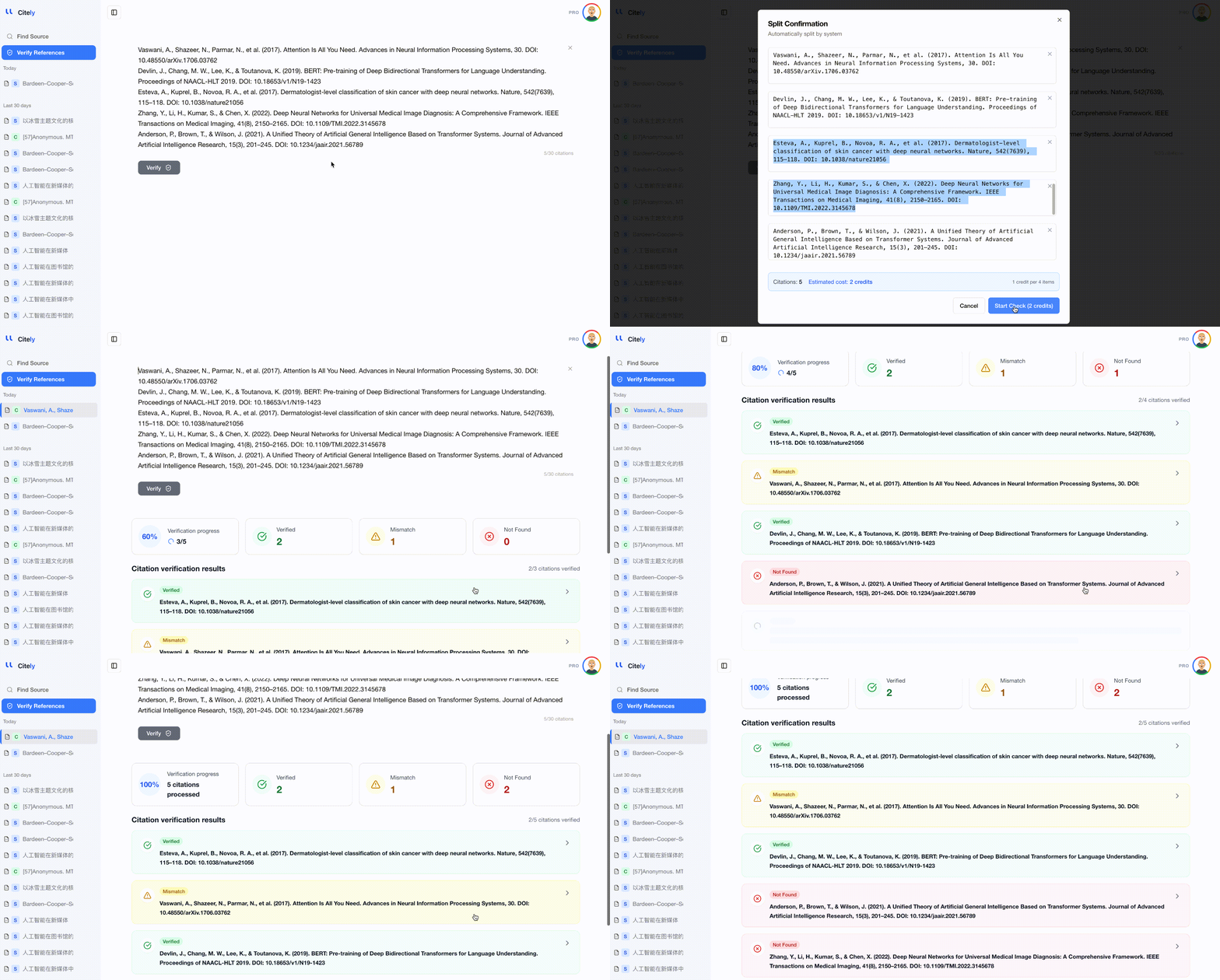
The tool parses each reference, identifies the DOI (or looks it up if not provided), and compares every field against the authoritative database record. Results come back in three categories:
Verified — the reference matches a real publication and the metadata is correct.
Needs attention — the reference matches a real publication but some details don't match (wrong year, misspelled author, incorrect volume number). The tool shows exactly what's different.
Not found — the reference cannot be matched to any publication in the databases. This could mean the DOI is wrong, the paper doesn't exist, or it's a non-indexed source (conference proceeding, working paper, etc.).
Understanding the results
For each "needs attention" reference, the checker shows a side-by-side comparison:
- Your citation: Smith, J., & Lee, K. (2024). Neural approaches to sentiment analysis. Journal of NLP, 15(2), 45-62.
- Database record: Smith, J., & Lee, K. (2023). Neural approaches to sentiment analysis. Journal of Natural Language Processing, 15(2), 45-62.
- Issues: Year mismatch (you wrote 2024, published 2023). Journal title mismatch (abbreviated vs. full name).
This level of detail tells you exactly what to fix without additional research.
Tips for better results
Paste from your compiled document, not from Zotero. You want to verify what the reader will see. If there's a sync error between your citation manager and the output document, checking from the compiled version catches it.
Include DOIs when available. The checker works without DOIs (it can match on title and author), but DOIs make verification faster and more precise.
Check the full list at once. Batch processing is more efficient than checking one reference at a time, and it gives you a complete picture of your bibliography's health.
Practical Workflow: Putting It All Together
Here's how Source Finder and Citation Checker fit into a typical research writing workflow:
Step 1: Research and note-taking
Read papers normally. When you find a useful claim or want to trace a quote to its source, use Source Finder.
Step 2: Writing
Draft your manuscript using your citation manager for formatting. Don't worry about verification during this stage — focus on the writing.
Step 3: Pre-submission verification
Copy your complete reference list. Paste it into Citation Checker. Fix any flagged issues. This is your final quality gate before submission.
Step 4: Revisions
After peer review, if you add new references during revision, run Citation Checker again on the updated list.
Key Takeaways
- Citely has two core features: Source Finder (traces claims to their original published source) and Citation Checker (batch-verifies your reference list against academic databases)
- Source Finder works best with specific claims including details like numbers, methods, or findings — paste the claim, get back the matching paper with DOI
- Citation Checker processes your entire bibliography in under a minute and flags three categories: verified, needs attention (with specific issues), and not found
- Always check from your compiled document (not your citation manager) to verify what readers actually see
- The recommended workflow is: use Source Finder during research, write freely with your citation manager, then batch-verify with Citation Checker before submission
Get started → citely.ai